Photo Gallery
This section showcases various images displayed using the PhotoSwipe library . Each image opens in a full-screen lightbox for a detailed view. Explore the different layouts and features below.
Demonstration
In this section, you will see images arranged in different layouts and styles.
Default
This default gallery presents images in a responsive grid layout. Click on any image to open it in a full-screen lightbox.


Captions
This gallery includes captions for each image, providing additional context or information. Use the checkbox below to toggle the visibility of the captions.
The last item has no caption.


Google Map
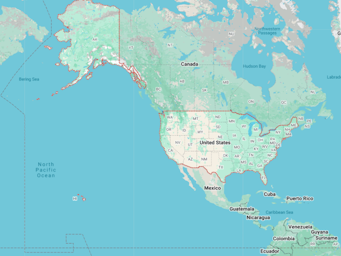
In this example an interactive Google Map is inserted into the second slot of the gallery. Swipe gestures between the lightbox and Google Maps frame can interfere with each other in this implementation, for this reason either additional modifications or avoiding this approach is recommended in user-facing production environments. However, this currently serves as a strong demonstration of the flexibility of the PhotoSwipe codebase.
Jump Links
This section demonstrates the use of jump links within the gallery. Clicking the button below will directly open the second photo in the second gallery.
This method uses a custom JavaScript function PSWP_Open(gallery, item) to directly open the specified gallery item.
Implementation Details
The structure of this photo gallery has been carefully designed to provide a seamless user experience across various devices while ensuring accessibility and ease of use. Below are the key considerations and decisions made during the implementation:
PhotoSwipe Integration
PhotoSwipe is a powerful library that provides a full-screen lightbox effect for images. Integrating PhotoSwipe enhances the user experience by allowing users to view images in greater detail. The lightbox setup is initialized with specific gallery and item selectors to ensure that the right elements are targeted for the lightbox effect.
Custom Features Added in This Example
This example project adds several behaviors and UI customizations on top of base PhotoSwipe so the gallery works more like a complete site component instead of a minimal library demo.
- Custom icon integration: the default PhotoSwipe controls are restyled to use this example project's font icons for close, arrows, zoom, fullscreen, share, copy, and download actions.
- Share and deep-link support: opening a slide updates the page URL with gallery and item hash values, allowing direct links to reopen the same lightbox item. The custom share menu also includes a copy-link action and image download action.
- Custom caption handling: captions are pulled from
figcaptionwhen available, with the imagealttext used as a fallback. - Fullscreen and presentation behavior: the example adds a custom fullscreen button, desktop idle-fade behavior for the lightbox UI, and a helper function
PSWP_Open(gallery, item)for opening a specific gallery item from other page controls. - Extended content support: the gallery can also render a Google Map slide through custom item parsing instead of being limited to plain image-only content.
- Background treatment and scroll handling: the example includes optional blurred-background handling and scroll-position syncing so the related thumbnail remains centered in view as the active slide changes.
Captions and Accessibility
Including captions for images provides additional context and information, enhancing the overall user experience. The figcaption element is used to semantically associate the caption with the image, which is beneficial for screen readers and improves accessibility. The checkbox for the Captions gallery demonstrates that captions can be hidden until the user enlarges an image or is using a screen reader. This feature ensures a cleaner interface while still providing necessary information when needed.
Screen Reader Compatibility
Accessibility is a crucial aspect of web design. The gallery structure ensures compatibility with screen readers by using semantic HTML elements like figure and figcaption. The alt attributes in the img tags provide descriptive text for screen readers, making the gallery accessible to visually impaired users. The dynamic caption feature in the PhotoSwipe lightbox further enhances accessibility by updating the caption content based on the current slide.
Performance Optimization
To ensure optimal performance, external stylesheets and scripts are loaded only when necessary. This minimizes the initial load time and improves the overall performance of the gallery. Additionally, the use of smaller placeholder images for thumbnails and larger images for the lightbox view balances image quality with loading speed.
The Code
What You Actually Need
If you want to reuse this example, the practical pieces are the asset includes, the gallery markup, the PhotoSwipe-specific SCSS hooks, and the custom initializer that adds captions, share controls, fullscreen support, deep links, and map content.
Required Asset Includes
@@include('_html/frame/top-example.html', {
  "stylesheets": [
    "/asset/module/photoswipe/photoswipe.css",
    "/asset/css/module/photoswipe.min.css",
    "/asset/css/font-icon/font-icon--module-photoswipe.min.css"
  ]
})

@@include('_html/frame/bottom.html', {
  "scripts": [
    "/asset/module/photoswipe/photoswipe.umd.min.js",
    "/asset/module/photoswipe/photoswipe-lightbox.umd.min.js",
    "/asset/js/module/photoswipe.custom.min.js"
  ]
})
Gallery Markup
<div class="pswp-gallery">
  <a
    class="pswp-gallery__item"
    href="/asset/image/content/example/photo-gallery/1024x1024-no-caption.png"
    data-pswp-width="1024"
    data-pswp-height="1024">
    <img src="/asset/image/content/example/photo-gallery/256x256-no-caption.png" alt="Square example image.">
  </a>

  <figure>
    <a
      class="pswp-gallery__item"
      href="/asset/image/content/example/photo-gallery/2048x1024.png"
      data-pswp-width="2048"
      data-pswp-height="1024">
      <img src="/asset/image/content/example/photo-gallery/512x256.png" alt="Wide example image.">
    </a>
    <figcaption>A wide image caption shown inside the custom PhotoSwipe caption area.</figcaption>
  </figure>

  <a
    class="pswp-gallery__item"
    data-pswp-type="google-map"
    data-google-map-url="https://www.google.com/maps/embed?..."
    href="https://maps.google.com/..."
    target="_blank">
    <img src="/asset/image/content/example/photo-gallery/map-thumb.png" alt="Map preview.">
  </a>
</div>
Key SCSS Hooks
.pswp__button {
  @include variable_interact.interact_structure();

  width: $pswp_top_row_element_size;
  height: $pswp_top_row_element_size;
  opacity: variable_interact.$interact_opacity_default;

  &, &:hover, &:active, &:focus {
    background-color: config_variable.$CONFIG_CUSTOM_SITE_COLOR_LINK;
    color: function_color.text-color(config_variable.$CONFIG_CUSTOM_SITE_COLOR_LINK);
  }
}

.pswp__custom-caption {
  background-color: config_variable.$CONFIG_CUSTOM_SITE_COLOR_BG_PAGE;
  border-radius: variable.$unit_relative_1;
  padding: variable.$unit_root_1 variable.$unit_root_2;
  position: absolute;
  left: 50%;
  bottom: 0.5rem;
  transform: translateX(-50%);
}

#pswp__menu--share {
  background-color: config_variable.$CONFIG_CUSTOM_SITE_COLOR_BG_PAGE;
  border-radius: variable.$unit_relative_1;
  z-index: 1000;

  .pswp__button {
    width: auto;
    height: auto;
    display: block;
  }
}

.pswp__google-map-container iframe {
  width: 100%;
  height: 100%;
  max-width: 800px;
  max-height: 600px;
  pointer-events: auto;
}
Custom Initializer
const gallerySelector = '.pswp-gallery';
const itemSelector = '.pswp-gallery__item';

const lightbox = new PhotoSwipeLightbox({
  gallery: gallerySelector,
  children: itemSelector,
  arrowPrevSVG: '<span class="font-icon--module-photoswipe--arrow-left"></span>',
  arrowNextSVG: '<span class="font-icon--module-photoswipe--arrow-right"></span>',
  closeSVG: '<span class="font-icon--module-photoswipe--close"></span>',
  pswpModule: PhotoSwipe
});

function updateURL(galleryIndex, itemIndex) {
  const newURL = `${window.location.origin}${window.location.pathname}#&gallery=${galleryIndex}&item=${itemIndex}`;
  window.history.pushState({ path: newURL }, '', newURL);
}

function photoswipeParseHash() {
  const hash = window.location.hash.substring(1);
  const params = {};

  if (hash.length < 5) {
    return { gallery: false, item: false };
  }

  hash.split('&').forEach((part) => {
    const pair = part.split('=');
    if (pair.length === 2) {
      params[pair[0]] = pair[1];
    }
  });

  return {
    gallery: parseInt(params.gallery, 10) || false,
    item: parseInt(params.item, 10) || false
  };
}

lightbox.on('uiRegister', () => {
  lightbox.pswp.ui.registerElement({
    name: 'share-button',
    order: 8,
    isButton: true,
    tagName: 'button',
    className: 'pswp__button--share',
    html: '<span class="font-icon--module-photoswipe--share"></span>',
    onClick: (event) => {
      event.stopPropagation();
      document.getElementById('pswp__menu--share')?.classList.toggle('pswp__menu--open');
    }
  });

  lightbox.pswp.ui.registerElement({
    name: 'share-menu',
    order: 7,
    isButton: false,
    tagName: 'div',
    className: 'pswp__menu pswp__menu--share',
    html: `
      <a id="copy-url" class="pswp__button button" href="#"><span class="font-icon--module-photoswipe--copy"></span> Copy URL</a>
      <a id="download-image" class="pswp__button button" href="#"><span class="font-icon--module-photoswipe--download"></span> Download Image</a>
    `,
    onInit: (el) => {
      el.id = 'pswp__menu--share';
    }
  });

  lightbox.pswp.ui.registerElement({
    name: 'custom-caption',
    order: 9,
    appendTo: 'root',
    onInit: (el, pswp) => {
      pswp.on('change', () => {
        const currSlideElement = pswp.currSlide?.data?.element;
        const figure = currSlideElement?.parentElement;
        const figcaption = figure?.tagName.toLowerCase() === 'figure'
          ? figure.querySelector('figcaption')
          : null;

        el.innerHTML = figcaption
          ? figcaption.innerHTML
          : currSlideElement?.querySelector('img')?.getAttribute('alt') || '';
        el.style.display = el.innerHTML ? 'block' : 'none';
      });
    }
  });
});

lightbox.addFilter('itemData', (itemData) => {
  const googleMapUrl = itemData.element?.dataset.googleMapUrl;
  if (googleMapUrl) {
    itemData.googleMapUrl = googleMapUrl;
  }
  return itemData;
});

lightbox.on('contentLoad', (event) => {
  if (event.content.type !== 'google-map') {
    return;
  }

  event.preventDefault();
  event.content.element = document.createElement('div');
  event.content.element.className = 'pswp__google-map-container';

  const iframe = document.createElement('iframe');
  iframe.src = event.content.data.googleMapUrl;
  iframe.setAttribute('allowfullscreen', '');
  event.content.element.appendChild(iframe);
});

lightbox.on('change', () => {
  const currSlide = lightbox.pswp.currSlide;
  const galleries = document.querySelectorAll(gallerySelector);

  for (let i = 0; i < galleries.length; i++) {
    if (galleries[i].contains(currSlide.data.element)) {
      updateURL(i + 1, currSlide.index + 1);
      break;
    }
  }
});

lightbox.init();

window.PSWP_Open = function(gallery, item) {
  const galleryElement = document.querySelectorAll(gallerySelector)[gallery];
  lightbox.loadAndOpen(item, { gallery: galleryElement });
};

window.addEventListener('hashchange', () => {
  const hashData = photoswipeParseHash();
  if (hashData.gallery && hashData.item) {
    const galleryElement = document.querySelectorAll(gallerySelector)[hashData.gallery - 1];
    lightbox.loadAndOpen(hashData.item - 1, { gallery: galleryElement });
  }
});
For the full implementation used by this example page, see asset/js/module/photoswipe.custom.js and asset/css/module/photoswipe.scss.
Sources
This page is comprised of my own additions and either partially or heavily modified elements from the following source(s):